


The web store is divied into two different access areas. Store Front allows site Visitors and customers to do their shopping or manage their personal accounts whereas access the Admin Console is provided to allow store owners (also known as administrators) to add products to the store's catalog and configure other business rules.
A Typical Shopping Flow
To facilitate the understanding on how online shopping works, let us go through a typical set of activities that customers perform when doing their online shopping. This entire process is actually a workflow to visualize which part of your store will be affected when you start configuring your own online store. For simplicity, the following illustrattion is shown in sequence.
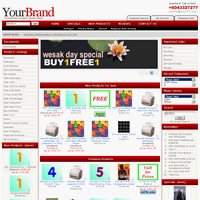
A customer discovered about your website through any marketing campaign (Search Engine, Gift Certificate, Banner Link, etc) you have signed up. The customer types it into the web browser to reach your Store Front which is known as the Home Page (which is also known as the Index Page or Main Page). The customer browses through your store's products.
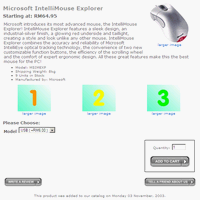
As the customer navigate through the list of products, he may click on the Product Info page to see details on the price, weight, discounts and any other information related to the product.
Once the customer decides to purchase the product, he enters the desired quantity into the “Add to Cart” text box and then clicks the “add this to my cart” button to proceed to the Shopping Cart page.
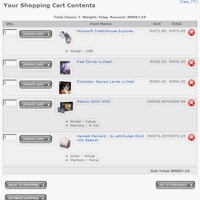
On the Shopping Cart page, the number of items that the customer has purchased and the price breakdown for all items will be displayed. Here,, products can be removed and the quantity of items changed by clicking the relevant icons on the screen. Once the customer is satisfied with his purchase, he can click the “go to checkout” button to begin the checkout process.
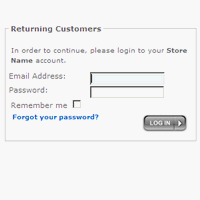
Before the customer enters the checkout process, he will be redirected to the customer login page if he has not logged in to his account prior. If he does not have an account, he will need to sign up for an account at the same page. However, the signup requirement can be configured to be optional Throughout the process, the system ensure that items in the customer's shopping cart will not be lost even if he transitions from an anonymous visitor to a logged in customer.
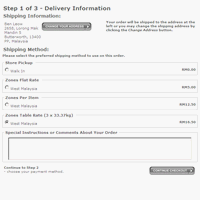
Once the customer is logged in, he will automatically be redirected to the Delivery Information page. The customer will choose his desired shipping option and confirm his delivery addresses. After making his selection, he will click on the “continue checkout” button to proceed to the Payment Information page.
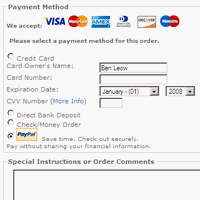
At the Payment Information page, the customer will choose his desired payment option and confirm his billing addresses. The customer can also use the monetary values contained in his discount coupons or gift certificates to offset a portion of the order amount. After the customer is satisfied with his selection, he will click on the “continue checkout” button to proceed to the Order Confirmation page.
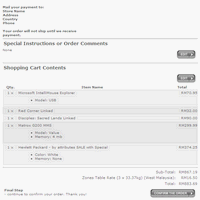
At the Order Confirmation page, all applicable costs (shipping charges, sales taxes, etc) for the customer's order are tallied and displayed. Previously selected values for the Delivery Information page and Payment Information page will also be displayed.
Once the customer is satisfied with the details of his order, he will click on the “confirm the order” button. After the order is processed by the system (send out order confirmation emails, set order status to Pending, save order in database, etc), the customer will be redirected to the Checkout Success page.
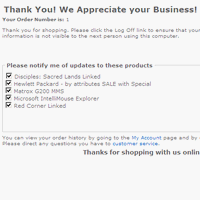
At the Checkout Success Page, the customer will be given an opportunity to opt-in to receive any email updates for the products he just purchased.
If the customer has purchased gift certificates from your store or received gift certificates from his friends, the balance in his gift certificate account will also be displayed. This brings an end to the shopping flow.
Optionally, if the customer wants to view his order history, he can click the My Account hyperlink to proceed to the My Account Information page.
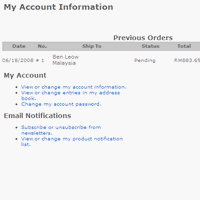
At the My Account Information page, the customer will be able to view his order history and check on each order status.

